
Finding an image online is easy. You just need to open Google Images, type what you are looking for, and browse the results. But sometimes, a normal search does not give you the exact image you need.
You may want a high-quality photo, a transparent image, a specific image format, or a picture from a particular website. Searching through hundreds of results can take a lot of time.
This is where advanced image search becomes useful.
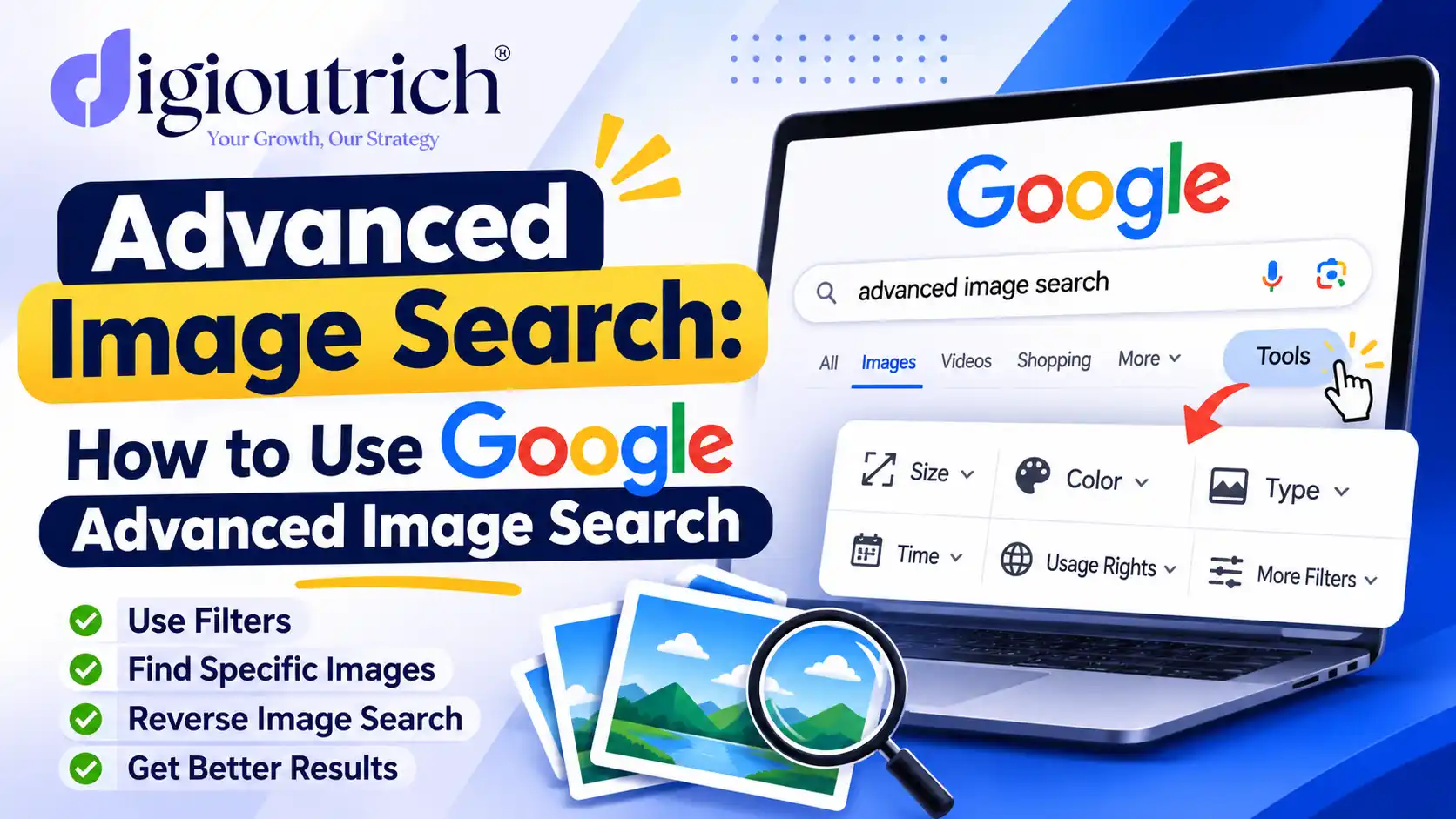
Google Advanced Image Search gives you more control over your image results. You can apply different filters and find images based on size, colour, type, region, website and usage rights.
In this guide, we will explain how Google Advanced Image Search works, how to use its filters, and how it can help with everyday work and digital marketing.
What Is Advanced Image Search?
Advanced image search is a way to find images by using more detailed search options instead of relying only on keywords.
Google offers an Advanced Image Search page where you can enter your search terms and select different filters.
For example, suppose you are looking for a business logo with a transparent background. Instead of checking every result, you can use the image colour and other available filters to narrow down your search.
It is useful for:
- Finding images of a particular size.
- Searching for photos with specific colours.
- Finding images from a selected website.
- Looking for JPG, PNG, SVG and other formats.
- Checking images with reuse licence information.
- Finding pictures for blogs, websites and presentations.
How to Use Google Advanced Image Search
Using Google Advanced Image Search is quite simple. Follow these steps:
- Open Google Advanced Image Search.
- Enter your main keyword in the search box.
- Add an exact phrase or words you want to exclude, if needed.
- Select the image filters according to your needs.
- Click on the Advanced Search button.
- Browse the results and open the images that match your requirements.
You do not need any special software or technical knowledge to use this feature.
Important Google Image Search Filters
Google provides several filters that help you find more relevant images. Let’s understand how each one works.
1. Image Size
The size filter helps you find images based on their dimensions or resolution.
For example, if you need a large image for a website banner, you can select a larger image size instead of choosing a small thumbnail.
Common options include:
- Any size
- Large
- Medium
- Icon
- Larger than selected pixel dimensions or megapixel sizes
When to use it: Choose larger images for website banners, blog thumbnails and presentations. Smaller images may work better for icons and simple graphics.
2. Aspect Ratio
Aspect ratio means the shape of an image. It is important when you need an image that fits a particular space.
Google offers options such as:
- Tall: Useful for posters and vertical designs.
- Square: Good for profile pictures and social media posts.
- Wide: Suitable for website banners and blog thumbnails.
- Panoramic: Useful for wide landscape images.
Choosing the right ratio can save time during image editing.
3. Image Colour
Sometimes, you need images that match your website or brand colours. The colour filter makes this easier.
You can search for:
- Full-colour images
- Black and white images
- Transparent images
- Images with a selected colour
For example, if your website uses blue and white colours, you can search for images with similar shades to keep your website design consistent.
4. Image Type
The image type filter helps you find a particular kind of visual content.
| Image Type | Best Use |
|---|---|
| Photo | Real-life pictures |
| Face | Images showing people |
| Clip Art | Simple graphics and illustrations |
| Line Drawing | Outlined drawings |
| Animated | GIF images |
This filter is helpful when you are looking for a specific type of image instead of general photos.
5. Region
The region filter allows you to narrow image results based on a selected country or region.
For example, a business researching local markets may look for images related to India, the USA or the UK.
It can help when you need region-related visual references for your content or research.
6. Site or Domain
This is one of the most useful options in Google Advanced Image Search.
It allows you to search for images from a particular website or domain.
For example, if you want to find images from a specific website, enter its domain in the Site or Domain field.
You can also use a search operator:
site:example.com marketing images
This will help you find indexed image results associated with that website.
7. File Type
Different projects need different image formats. The file type filter helps you find images in a preferred format.
| Format | Common Use |
|---|---|
| JPG | Website photos |
| PNG | Transparent graphics |
| SVG | Logos and vector graphics |
| GIF | Animated images |
| WEBP | Web-friendly images |
| BMP | Bitmap images |
| ICO | Website icons |
For example, if you need a logo with a transparent background, PNG or SVG results may be useful.
8. Usage Rights
Usage rights are important when you want to use images on your website, blog or business pages.
Google allows you to filter images based on available licence information.
Some options include Creative Commons licences and commercial or other licences.
However, remember that seeing an image under a usage rights filter does not automatically mean you can use it without conditions.
Always check the original source and licence details before using an image. Some images may require credit, payment or permission from the owner.
Google Image Search vs Google Advanced Image Search
Both options help you find images, but they offer different levels of control.
| Feature | Google Image Search | Advanced Image Search |
|---|---|---|
| Keyword search | Yes | Yes |
| Image size filter | Yes | Yes |
| Colour filter | Yes | Yes |
| Image type | Basic filters | More detailed options |
| Website search | Search operators | Direct domain field |
| File format | Basic filtering | Specific format selection |
| Usage rights | Available filters | Detailed licence options |
If you only need a normal picture, regular Google Images is enough. But if you have specific requirements, advanced image search can make the process easier.
How to Use Advanced Image Search for Digital Marketing
Advanced image search is not just useful for finding pictures. It can also support different digital marketing activities.
1. Find Images for Blog Posts
Every good blog needs relevant images. They make the content easier to read and help explain the topic.
You can use Google image filters to find suitable visual references for your blog topics.
Before publishing any image, check its licence and make sure it is suitable for your website.
2. Research Your Competitors
Want to understand how other businesses use images on their websites?
You can search for images from a competitor’s domain and review their visual content.
This may help you find ideas for:
- Blog thumbnails.
- Product images.
- Infographics.
- Service banners.
- Social media graphics.
It is a simple way to study how other brands present their content online.
3. Find Guest Posting Opportunities
Image search can sometimes help you discover websites publishing content in your industry.
For example, you can search for industry-related infographics, author images or branded graphics and visit their source pages.
However, image search alone cannot confirm whether a website accepts guest posts. You should check its contributor guidelines and contact the website owner before making a pitch.
For businesses working on link building, this can be one additional research method alongside normal Google searches.
4. Find Images for Website Design
Website images should match the overall design and content.
You can use image size, aspect ratio and colour filters to find suitable references for:
- Homepage banners.
- Service page graphics.
- Blog thumbnails.
- Product images.
- Background visuals.
A consistent image style can make your website look more professional.
What Is Reverse Image Search?
Reverse image search is another useful way to search for information using an image instead of text.
For example, if you have a picture but do not know where it came from, you can upload it to Google Lens to find visually similar images and related information.
You can use it to:
- Find similar pictures.
- Discover the original source of an image.
- Search for products shown in a photo.
- Find other websites using similar visuals.
- Learn more about an object in a picture.
You can visit Google Lens to try this feature.
Tips for Getting Better Results from Google Advanced Image Search
Here are a few simple tips that can make your searches more useful:
- Use clear keywords: Search with specific terms instead of very general words.
- Try exact phrases: Use the exact phrase option when you need a particular match.
- Exclude unwanted words: Remove unrelated results by adding words you do not want.
- Select the right size: Choose image dimensions according to your design requirements.
- Check image licences: Never assume that every image on Google is free to use.
- Use domain filters: Search within a specific website when researching its visual content.
- Try different filters: Sometimes changing one filter can give you better results.
Final Thoughts
Google Advanced Image Search is a useful feature for anyone who regularly works with images. It helps you find pictures based on specific requirements without checking every result manually.
Whether you are creating blog posts, designing a website, researching competitors or working on digital marketing, these filters can save time and make your search more focused.
The best approach is to use clear keywords, select the right filters and always check image usage rights before publishing.
With a little practice, advanced image search can become a useful part of your daily online research.
Frequently Asked Questions (FAQs)
1. What is Google Advanced Image Search?
It is a Google feature that lets you find images using filters such as size, colour, type, region, file format and usage rights.
2. How do I open Google Advanced Image Search?
Visit Google Advanced Image Search, enter your keywords and select the filters you need.
3. Can I search for images by size?
Yes. You can select image size options or choose specific minimum dimensions to find images that match your requirements.
4. Are all Google Images free to use?
No. Many images are protected by copyright. Always check the licence and permission requirements before using them.
5. What is the difference between image search and reverse image search?
Image search uses text keywords to find pictures, while reverse image search uses an existing picture to find similar images or related information.
Read More Also – What Is Search Optimization?